
August 9, 2026 at 03:29 PM EST
Building Phase-Based Timers in React
August 9, 2026 at 03:29 PM EST
Building Phase-Based Timers in React
Inspired by the GNOME app Exercise Timer, I decided to make custom timers in React continuing the trend of my previous posts that have been leveraging it.
In this post, we’ll define tasks or activites as Missions, because it sounds nice and implies a sense of duty. A Mission constitutes of timed sessions (workTime) with an associated rest (restTime) for a number of sets (remainingSets). I also threw in a preparation time (prepTime), a countdown before the mission starts.
We’ll first create cards that display the general overview of the mission, namely the total time it takes, the set breakdown, etc. Then, we’ll give them life by linking them to a custom timer. Sounds uncomplicated, but there’s a lot of intermediate steps to watch out for in between!
Our starting point is defining a Mission object having the properties below:
It’s worth noting that the time units are in seconds, but later formatted properly to time strings for readability. In essence, for 130 seconds, the card should display 2 minutes and 10 seconds.
We create an array of Missions with arbitrary values. For example, the music session is done in 3 sets of 20 minutes with a 5 minute break between each. As mentioned, the preparation time acts as a countdown before engaging in the sets.
Mission Objects
const missions = [
  {
    id: 1,
    title: "Quick Coding",
    workTime: 600,
    restTime: 60,
    prepTime: 120,
    sets: 2,
    clr: "#52c22d",
  },
  {
    id: 2,
    title: "Stretching",
    workTime: 30,
    restTime: 15,
    prepTime: 60,
    sets: 3,
    clr: "#2a5ece",
  },
  {
    id: 3,
    title: "Music Session",
    workTime: 1200,
    restTime: 300,
    prepTime: 0,
    sets: 3,
    clr: "#c41c13",
  },
];
Next, we’ll make a simple dashboard that presents the missions turned into cards 1..
Mission Dashboard
import MissionCard from "./MissionCard";

export default function MissionsDashboard() {
  const missions = [
    // ...
  ];

  return (
    <div>
      <h3>Missions</h3>

      <div className="mission-container grid md:grid-cols-2 sm:grid-cols-1">
        {missions.map((mission) => {
          return (

            <MissionCard
              id={mission.id}
              title={mission.title}
              workTime={mission.workTime}
              restTime={mission.restTime}
              sets={mission.sets}
              clr={mission.clr}
            />
          );
        })}
      </div>
    </div>
  );
}
where the MissionCard is defined as:
Mission Card (prepTime omitted for this version)
interface MissionProps {
  id: number;
  title: string;
  workTime: number;
  restTime: number;
  sets: number;
  clr: string;
}

export default function MissionCard({
  id,
  title,
  workTime,
  restTime,
  sets,
  clr,
}: MissionProps) {
  return (
    <div
      style={{ borderColor: clr }}
      className="border-2 p-2 m-2 rounded-md shadow-md"
    >
      <div className="flex justify-between">
        <h4>{title}</h4>
        <p>{workTime * sets} seconds</p>
      </div>

      <p>
        // We'll deal with plurilization in another version.
        {sets} sets of {workTime} seconds
      </p>
    </div>
  );
}
The generated output is:
Right now, the times shown on the cards are in seconds which isn’t user-friendly. To show some decency, we transform them by means of a helper function formatTimer that formats seconds into a component separated time string. We’ll walk through how to extract the number of hours, minutes and seconds from the total number of seconds, call it totalSeconds. We proceed accordingly:
Seconds to H/M/S components
The flooredHours, flooredMinutes and remainingSeconds are the variables needed to construct the string above. We create a components array and push the hours, minutes, and seconds if their value is greater than 0. For example, if we have 3662 total seconds, we push “1 hour”, “1 minute” and “2 seconds” to the array. With pluralization taken into consideration, the final string concatenates the component entries with commas and conjunctions based on the number of elements in the array.
Implementation of Seconds to H/M/S components
// Skipping a bunch of if statements with a components array
export default function formatMissionTime(totalSeconds: number) {
  // Extract the hour component
  const rawHours = totalSeconds / 3600
  const flooredHours = Math.floor(rawHours)
  // Remove the hours from the seconds and get the minutes
  const secondsWithoutHours = totalSeconds % 3600
  const rawMinutes = secondsWithoutHours / 60
  const flooredMinutes = Math.floor(rawMinutes)
  // Extract the second component
  const remainingSeconds = totalSeconds % 60
  const components = []

  // If the floored value is 0, it gets skipped.
  // Example: 583 seconds:
  // 0 flooredHours, 9 minutes and 43 seconds
  if (flooredHours > 0) {
    components.push(`${flooredHours} hour${flooredHours > 1 ? "s" : ""}`)
  }


  if (flooredMinutes > 0) {
    components.push(`${flooredMinutes} minute${flooredMinutes > 1 ? "s" : ""}`)
  }


  if (remainingSeconds > 0) {
    components.push(`${remainingSeconds} second${remainingSeconds > 1 ? "s" : ""}`)
  }

  switch (components.length) {
    case 1:
      return `${components[0]}`
    case 2:
      return `${components[0]} and ${components[1]}`
    case 3:
      return `${components[0]}, ${components[1]} and ${components[2]}`
  }

}
Now that the times on the cards are well formatted, we’ll make them interactive in the next section.
Focusing purely on cosmetics, a tapped card should reveal a menu containing:
The timer’s string is constructed with the padStart function and the flooredHours flooredMinutes and remainingSeconds.
// Formatted string for the timer (initially work time)
export function formatTimerString(totalSeconds: number) {

  const flooredHours = Math.floor(totalSeconds / 3600);
  const secondsWithoutHours = totalSeconds % 3600;
  const flooredMinutes = Math.floor(secondsWithoutHours / 60);
  const remainingSeconds = totalSeconds % 60;

  return `${flooredHours.toString().padStart(2, "0")}:${flooredMinutes
    .toString()
    .padStart(2, "0")}:${remainingSeconds.toString().padStart(2, "0")}`;
}
A TimerMenu component sits behind the card. This card version displays the formatted timer string in addition to the list elements above. At this moment, the buttons don’t have any functionality, so our upcoming task is to make a timer that responds to the different mission phases.
For a number of sets, the main flow our timer should adhere to is:
(prepping?) → working → resting → working → … → finished
For clarity, the optional prepping phase happens once, and the working/resting cycles until set completion.
On the technical side, we conveniently define a new type TimerPhase and the states associated with timer functionality.
TimerPhase Type
// Prepping <=> Starting in...
type TimerPhase = "Starting in..." | "Working" | "Resting" | "Finished"
isPlaying, currentPhase, remainingSets and timeLeft states
// TimerMenuV2.tsx
interface TimerProps {
    title: string
    workTime: number
    restTime: number
    prepTime: number
    sets: number
    clr: string
}

export default function TimerMenuV2({workTime,r restTime, prepTime, sets, clr}: TimerProps) {
const [isPlaying, setIsPlaying] = useState<boolean>(false)
const [currentPhase, setCurrentPhase] = useState<TimerPhase>("Starting in...")
const [remainingSets, setRemainingSets] = useState<number>(sets)
const [timeLeft, setTimeLeft] = useState(prepTime ? prepTime : workTime)

  return (
    // ...
  )

}
With our types and states in place, we’ll be manoeuvering with two useEffect hooks, each manipulating state differently, playing their role in building our timer.
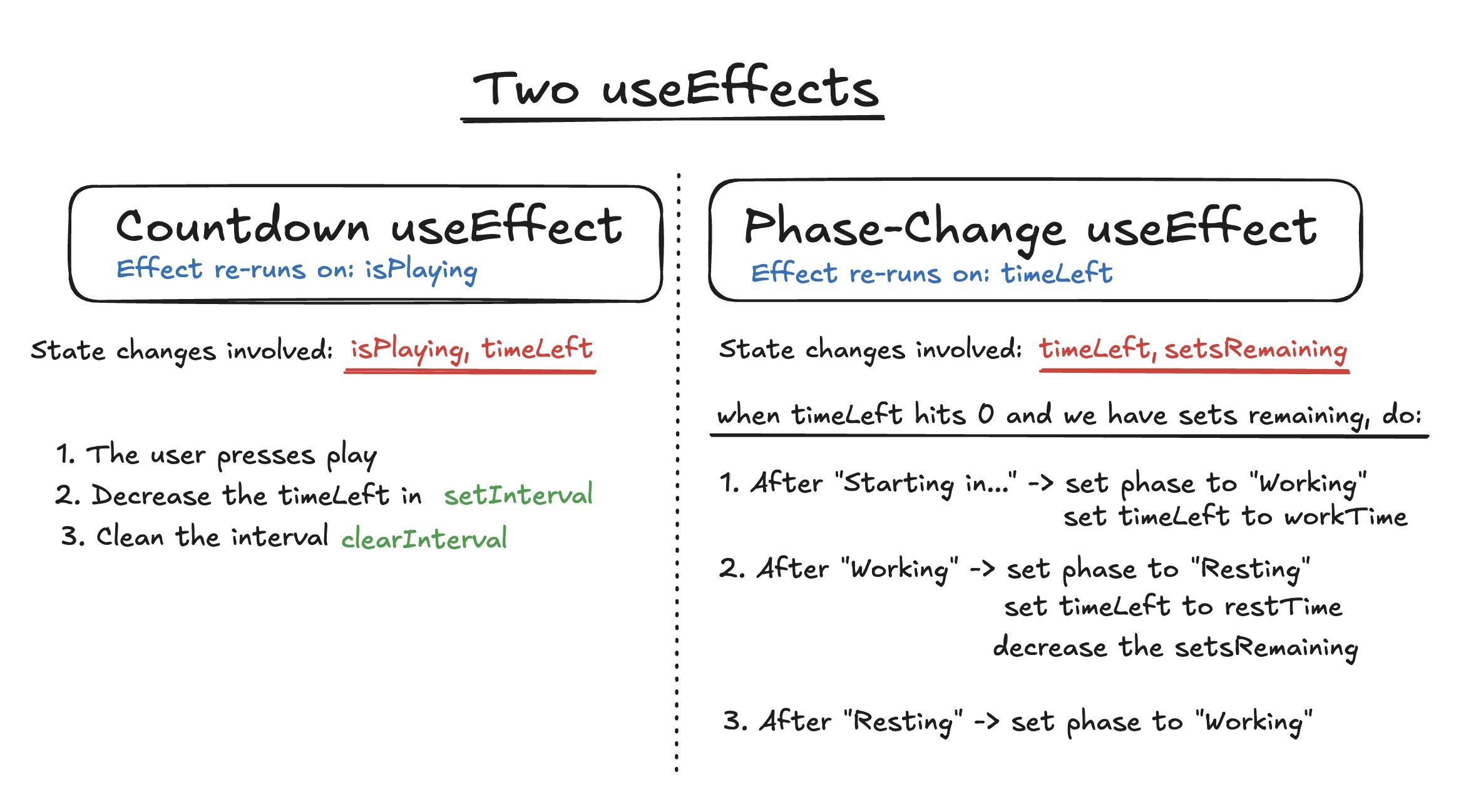
The first one, call it the countdown useEffect, oversees that we decrement the timeLeft every second. This is done by creating a timer through the setInterval function. That same hook, thanks to clearInterval, cleans up the timer (removes it from memory) every time isPlaying changes or if the component unmounts.
Countdown useEffect
// Countdown useEffect
useEffect(() => {
    // (*) Guard here, because useEffect runs regardless
    // on render regardless of the initial state of isPlaying
    if (!isPlaying) return;

    const timer = setInterval(() => {
        setTimeLeft(prev => prev - 1);
    }, 1000);

    // Every time the effect re-runs
    // or when the component unmounths, the old timer
    // gets cleared.
    return () => clearInterval(timer);

}, [isPlaying])
Note: When a component mounts, even if the play button wasn’t tapped, a useEffect by design runs automatically. For this reason, there’s a guard statement that returns if isPlaying is false. Initially, I made the mistake of not including it, so I saw the sneaky timer fire on its own when displaying the TimerMenu.
The other hook, name it the phase useEffect, switches our phase state when the timeLeft hits 0. For example, if we finish a working session (phase) in a Quick Coding mission, we modify the currentPhase from “Working” to “Resting” , and set the timeLeft to the restTime of 60 seconds (that’s the restTime in the Mission object). After every work phase, the remainingSets are decremented, and upon completion, we configure every affected state back to their default values.
Phase useEffect
// useEffect for handling phase changes.
useEffect(() => {

    // Edge case: the last work phase
    if (remainingSets == 0) {
        setCurrentPhase(prepTime ? "Starting in..." : "Working")
        setTimeLeft(prepTime ? prepTime : workTime)
        setIsPlaying(false)
        setRemainingSets(sets)
    }

    if (timeLeft != 0) return;

    switch (currentPhase) {

        case "Starting in...":
            setCurrentPhase("Working")
            setTimeLeft(workTime)
            break

        case "Working":
            setCurrentPhase("Resting")
            setTimeLeft(restTime)
            setRemainingSets(prev => prev - 1)
            break;

        case "Resting":
            setCurrentPhase("Working")
            setTimeLeft(workTime)
            break;

    }

}, [timeLeft])
This updated Timer Menu integrating the hooks captures the core functionality of ticking the timer with respect to the different phases2., except for the Finished phase will be covered next.
Note: Very short sessions are incorporated for testing purposes.
To clearly indicate that the mission is finished, we’ll overlay the TimerMenu with a “Well done” text. By introducing a setTimeout in the phase useEffect, the overlay is shown for 2 seconds once remainingSets are 0.
Introducing setTimeout in the phase useEffect
// Somewhere in the phase useEffect
// (the one with the switch statement)
if (remainingSets == 0) {
    setCurrentPhase("Finished")
    setIsPlaying(false)

    const timeout = setTimeout(() => {
        setCurrentPhase(prepTime ? "Starting in..." : "Working")
        setTimeLeft(prepTime ? prepTime : workTime)
        setIsPlaying(false)
        setRemainingSets(sets)
    }, 2000)

    return () => clearTimeout(timeout)
}
Overlay somewhere inside our revamped TimerMenu component
// Somewhere in TimerMenu
{currentPhase == "Finished" && (
    <div
        style={{ backgroundColor: `${clr}` }}
        className="flex items-center rounded-md justify-center m-auto z-2 absolute h-[100%] w-[100%] text-5xl"
    >
        Well done
    </div>
)}
Run the Test Session no Prep for a swift demonstration.
Alright, the final modification to apply on the cards are sound cues to indicate the end of a phase.
I’ve dropped sample sound files in the public folder that’ll pair up with HTMLAudioElements. We’ll need to create audio objects for each sound file, and store them as references with useRef, allowing them to persist through renders. A third useEffect is then required to link the audio files to the null HTMLAudioElements. For the record, that’s the third useEffect we declared so far.
HTMLAudioElement references
// Persisting Audio objects
const prepSound = useRef<HTMLAudioElement | null>(null)
const workSound = useRef<HTMLAudioElement | null>(null)
const restSound = useRef<HTMLAudioElement | null>(null)

useEffect(() => {
    // Files in the public folder can be fetched like so:
    // "/<folder_name>/<file>"
    prepSound.current = new Audio("/sounds/prep.wav")
    workSound.current = new Audio("/sounds/work.wav")
    restSound.current = new Audio("/sounds/rest.wav")

    // Stop audio as soon as we unmount
    return () => {
        workSound.current?.pause()
        workSound.current = null

        restSound.current?.pause()
        restSound.current = null

        prepSound.current?.pause()
        prepSound.current = null
    }

}, [])
Borrowing the procedure from the phase useEffect in the useEffect Toolbox section, we’ll create a fourth useEffect that plays a custom sound the last 5 seconds (arbitrary value) of a phase to notify the user that they’re about to finish a session. Out of precaution, we guard yet again if isPlaying is false and if our timeLeft doesn’t fall in range.
Different sounds for different phases on the fourth and final useEffect
// A lot of useEffects!
useEffect(() => {

    if (!isPlaying || timeLeft > 5 || timeLeft < 1) {
        return
    }

    switch (currentPhase) {

        case "Starting in...":

            if (prepSound.current) {
                prepSound.current.currentTime = 0
                prepSound.current.play()
            }

            break

        case "Working":

            if (workSound.current) {
                workSound.current.currentTime = 0
                workSound.current.play()
            }

            break

        case "Resting":

            if (restSound.current) {
                restSound.current.currentTime = 0
                restSound.current.play()
            }

            break
    }

}, [timeLeft, isPlaying])
We’re done! It’s lovely jubbly.
To talk about improvements, particularily for the sound cues, the GNOME app Exercise Timer makes the transitions apparent by ticking twice to signal the start of a phase (prep, work, rest) and ticking thrice when all sets are finished. In this implementation, sound is only played when the timeLeft is under 5 seconds, which is sufficient for the scope of this post.
On an ending unrelated note, even when we think the code is simple, it can always surprise us with unexpected behaviours. There’s a lot of edge cases that creep up on you if you’re not careful.
No comments on this post yet. Be the first to share your wisdom :)